B2B Enterprise SaaS · Invoicing & FinTech

Payrail: Instant Payment Links & Invoice Collection Revamp

End-to-end redesign and contextual integration of the Instant Payment Links & Invoice Collection feature within Payrail, accelerating digital cash collection and eliminating complex onboarding friction.

Role — Lead Product / UI-UX Designer Industry — B2B Enterprise SaaS / Invoicing & FinTech

2 months of activations surpassed the entire previous year

3–4% launch conversion rate
Context & Scope

Payrail provided a payment collection mechanism enabling businesses to generate direct payment links for customer invoices. Despite its clear utility, adoption remained critically low due to poor structural visibility.

Problem Statement — Journey Friction

User experience barrier

  • Severe discoverability deficit — the feature was isolated inside a secondary side menu tab, completely detached from moments of transaction intent.
  • Intimidating onboarding — accessing setup revealed a cluttered page demanding sensitive banking and commercial documents with zero contextual guidance.

Business impact

  • High registration drop-off — abandonment during registration stalled monetization and feature adoption.
  • Unaddressed churn risk — lack of transparency on verification status left users stranded, escalating support ticket load.
Where it started — invoices, before payments were activated
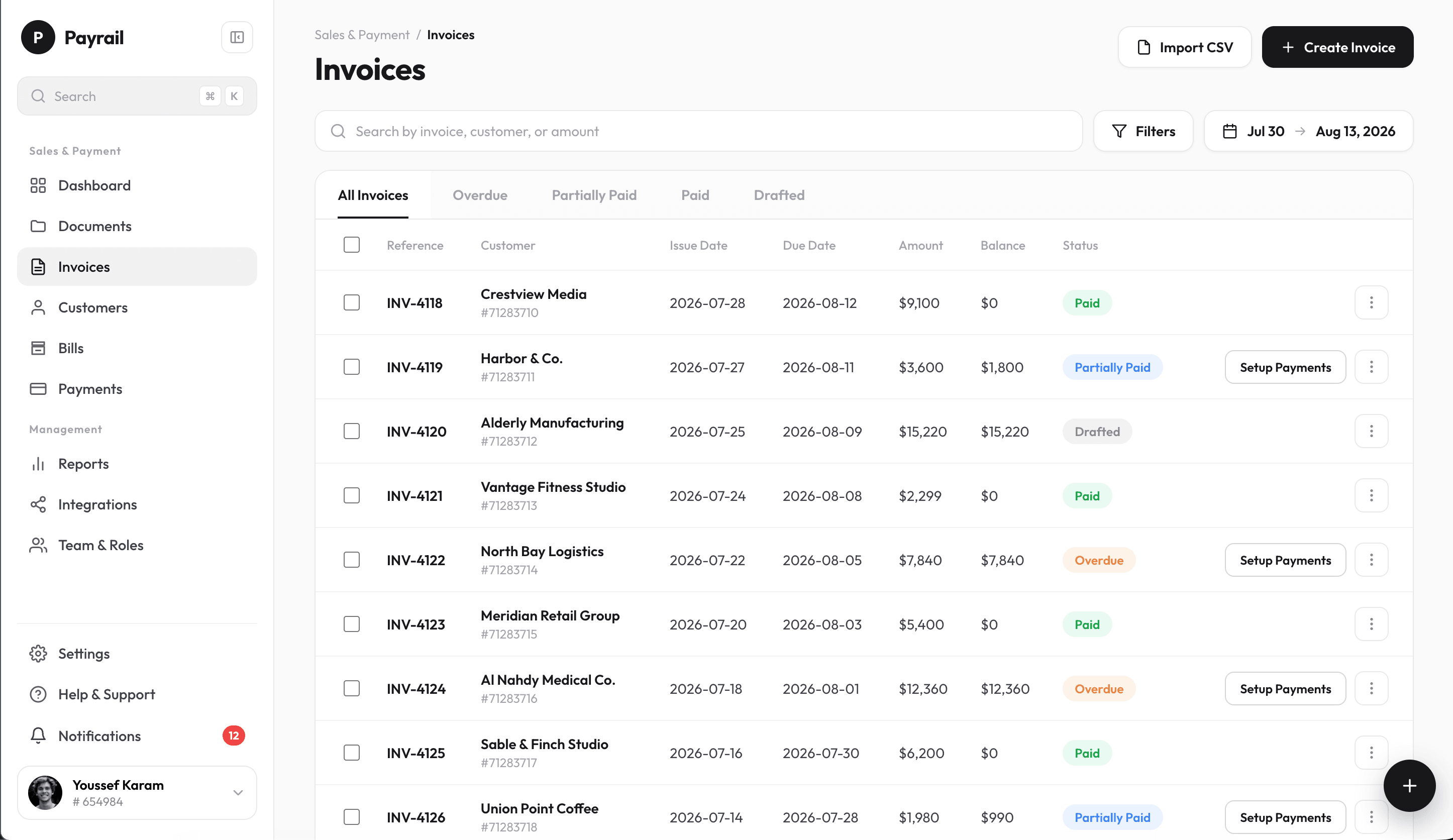
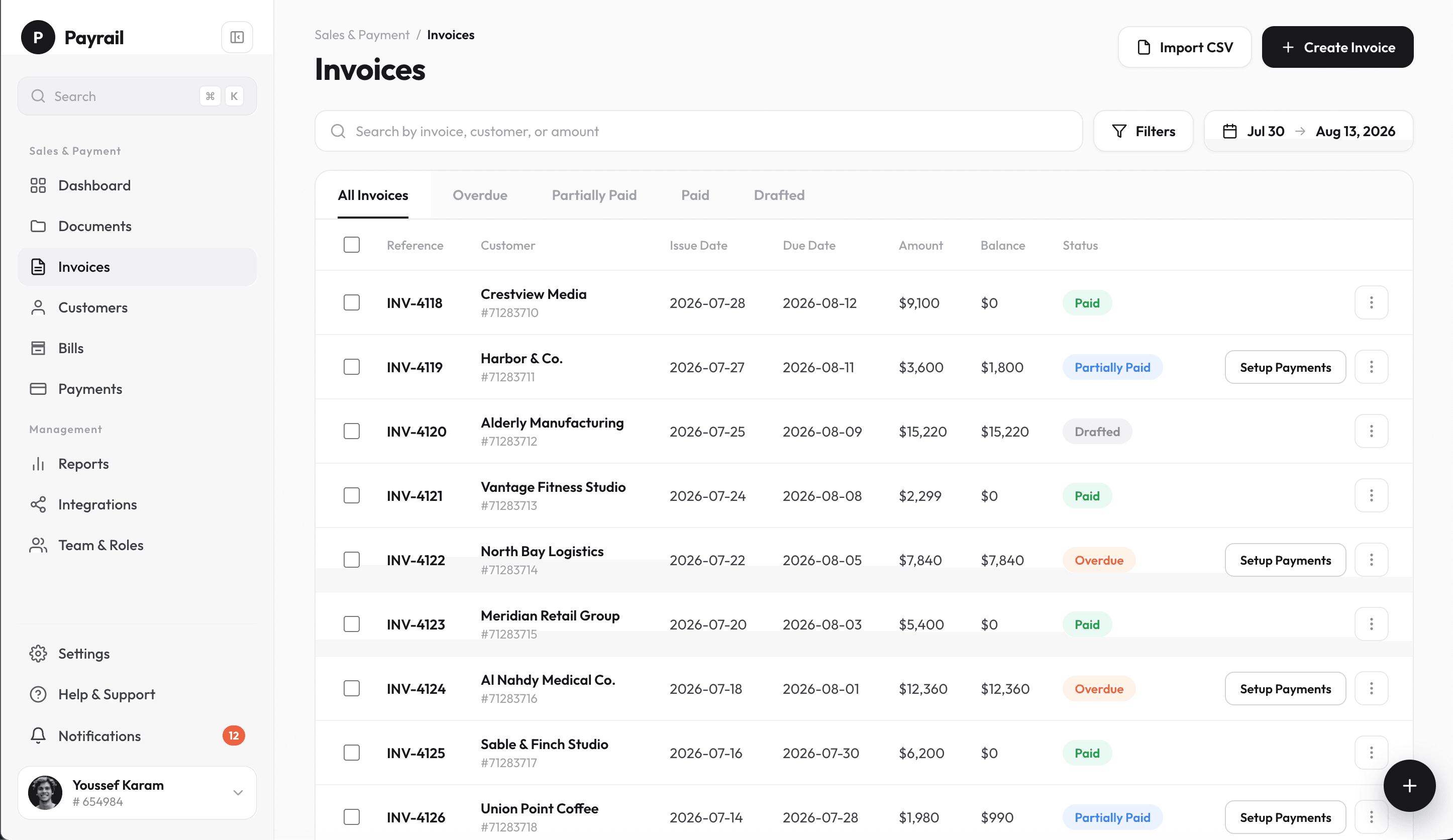
Payrail invoices dashboard with Paid, Partially Paid, Overdue and Drafted invoices and a Setup Payments button on each unpaid one
Unpaid invoices could only offer “Setup Payments”. Getting paid meant leaving the invoice to hunt down activation, which is exactly where users dropped off.
Key Questions

How do we shift this capability from a passive menu item into an active trigger at the precise moment of financial intent?

How can we streamline a document-intensive FinTech onboarding process into a friction-free, trust-building experience?

How do we deliver clear verification feedback so users track application states without needing customer support?

Core Insights & Design Decisions
01

Insight

Context trumps navigation — user intent peaks during active accounting tasks: specifically during invoice creation and when managing overdue receivables.

Decision

Contextual "just-in-time" integration — embedded direct activation and link generation triggers into the invoice creation page and invoices data table.

02

Insight

Clarity drives compliance — explaining the regulatory necessity of banking documents significantly lowers drop-off rates during verification steps.

Decision

3-step guided wizard — segmented the bloated submission form into structured, logical stages with field hints, tooltips, and explicit document requirements.

03

Insight

Preserving context is vital — navigating users away from their working invoice creates friction; self-contained overlay drawers maintain full focus.

Decision

In-context activation drawer — replaced full-page redirects with an accessible side drawer, letting users complete setup without abandoning their active invoice.

Dynamic status tracking banner — persistent state indicators (Pending, Approved, Rejected with actionable resolution details) right on invoice views.

Strategic Solutions — Just-in-Time Integration
01 — INVOICE CREATION

Contextual activation trigger

An inline enablement toggle appears directly inside the invoice creation flow, activating payment links exactly where intent is highest.

02 — OVERDUE INVOICES INDEX

Instant recovery action

A direct "Generate Payment Link" action lives in the invoices index table, turning pending receivables into one-click collection.

03 — SETUP DRAWER

3-step non-intrusive onboarding

A guided side drawer replaces full-page disruption, walking users through verification without ever leaving their invoice.

Solution & Key Screens
The solution — payment links right on the invoice
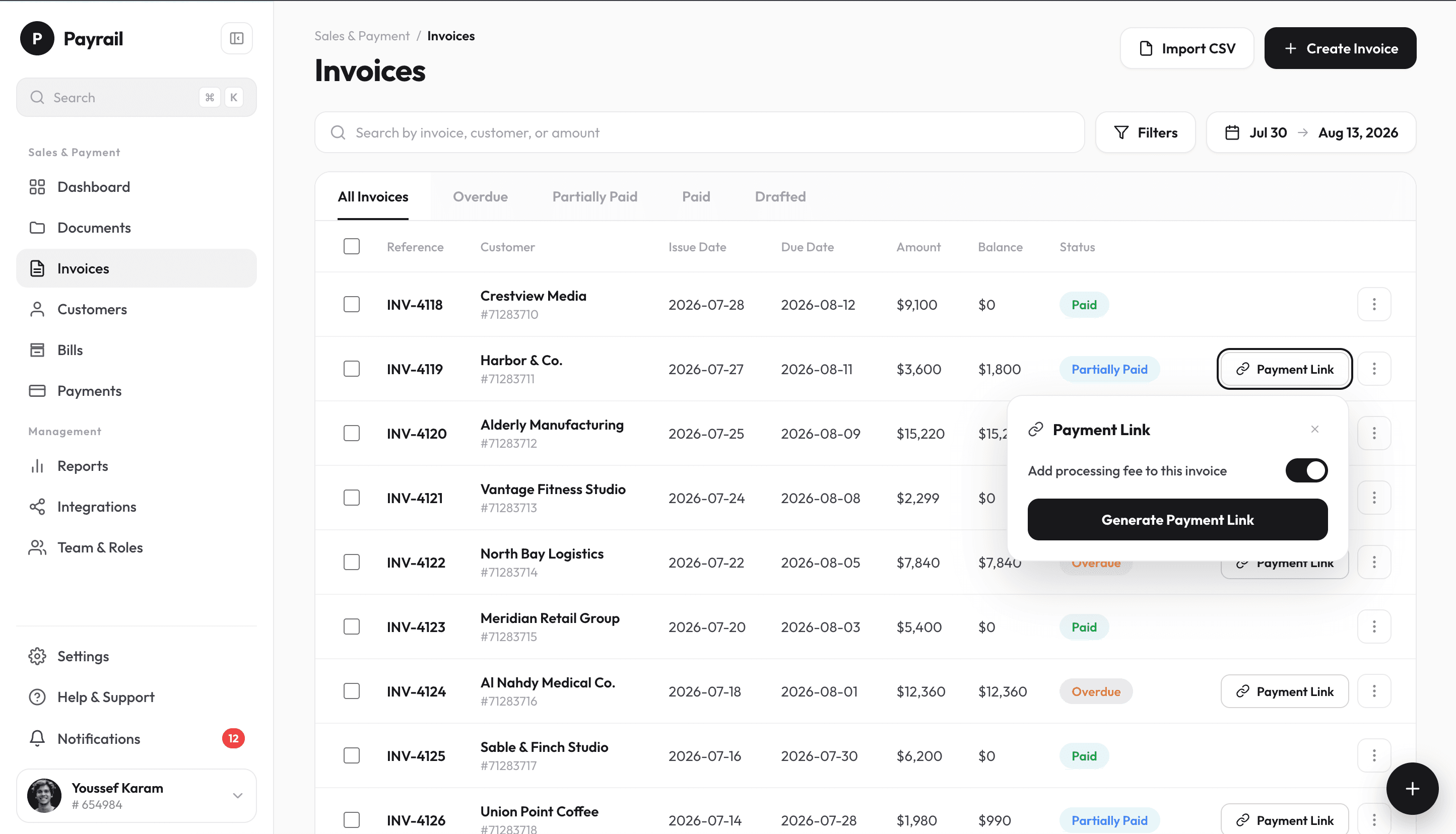
Once payments are live, every unpaid invoice gets a one-click Payment Link, with the processing-fee choice and a shareable link in a single popover.
Inside the 3-step setup drawer

Activation happens in a side drawer over the invoice, breaking the process into short, manageable steps. This step-by-step wizard was designed specifically to reduce cognitive load, eliminate unnecessary input fields, and clearly explain to the merchant why each piece of information is required before proceeding.

Scroll or swipe to see every step

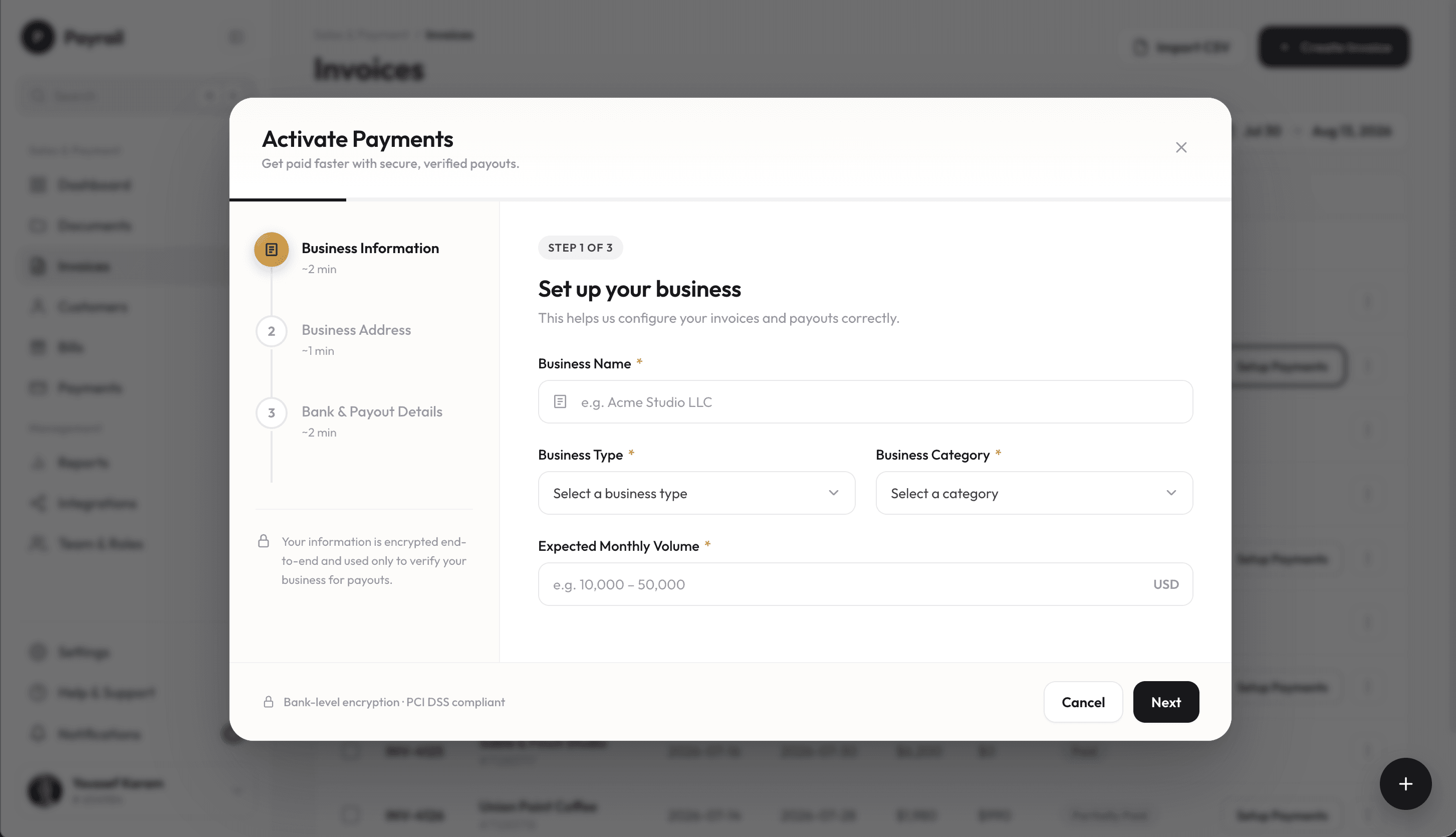
Activate Payments drawer, step 1 of 3: business name, business type, category and expected monthly volume
Step 1Business infoName, type, category and expected monthly volume — with a time estimate for each step and a note on why the details are needed.
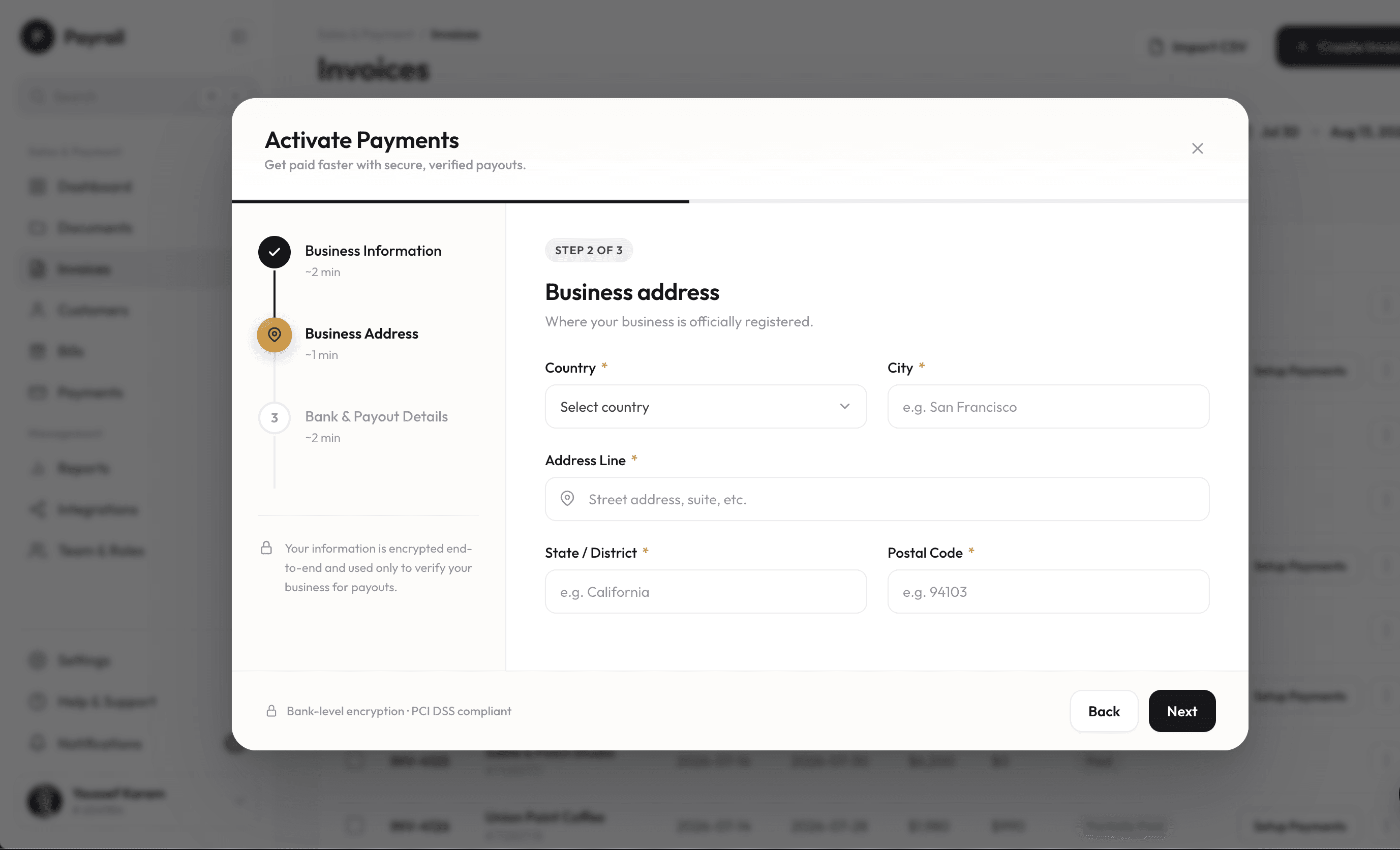
Activate Payments drawer, step 2 of 3: country, city, address line, state and postal code
Step 2AddressWhere the business is registered: country, city, street address, state and postal code.
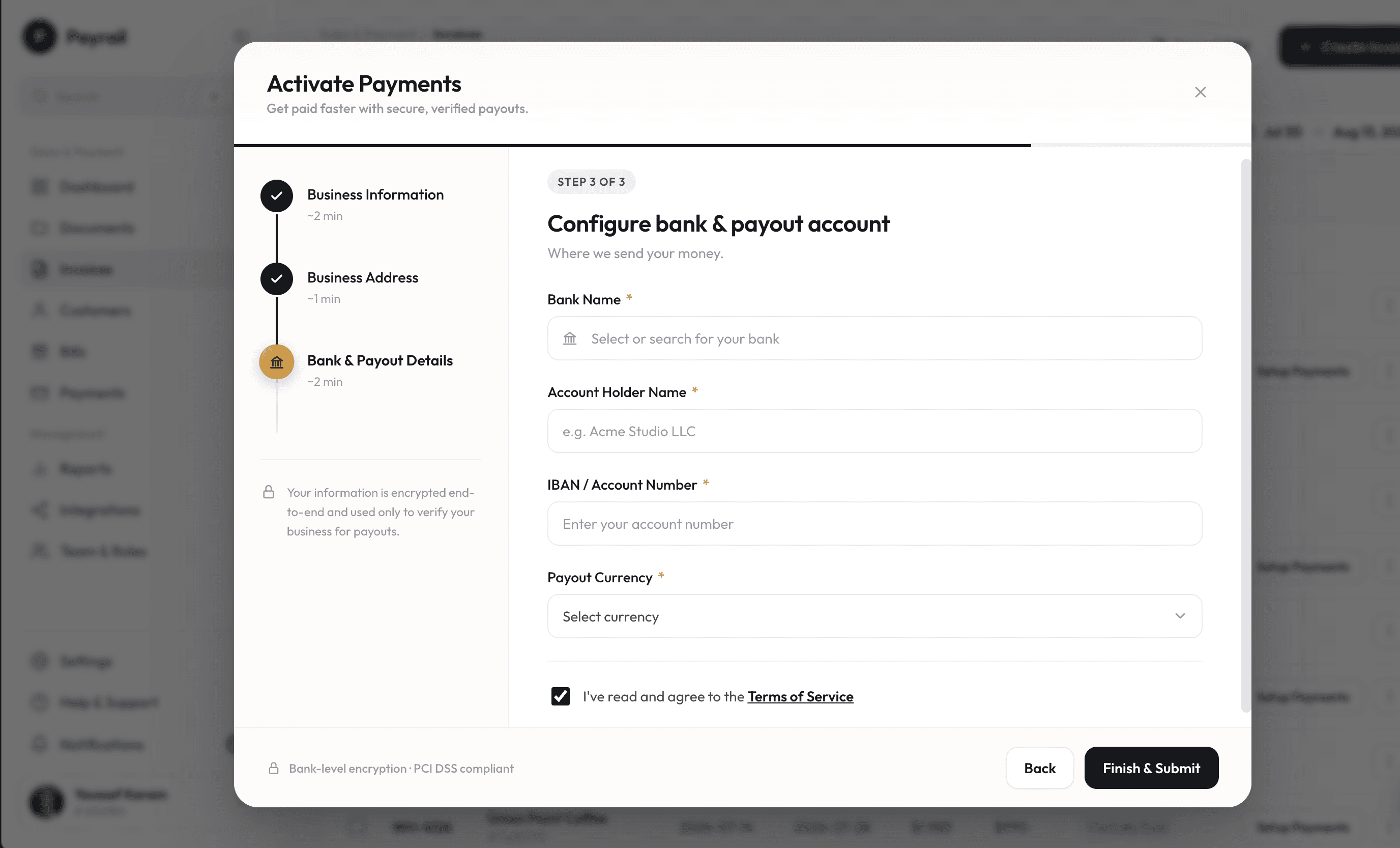
Activate Payments drawer, step 3 of 3: bank name, account holder, IBAN and payout currency, with a terms agreement checkbox
Step 3Bank & payoutBank, account holder, IBAN and payout currency, then agreeing to the terms before submitting.
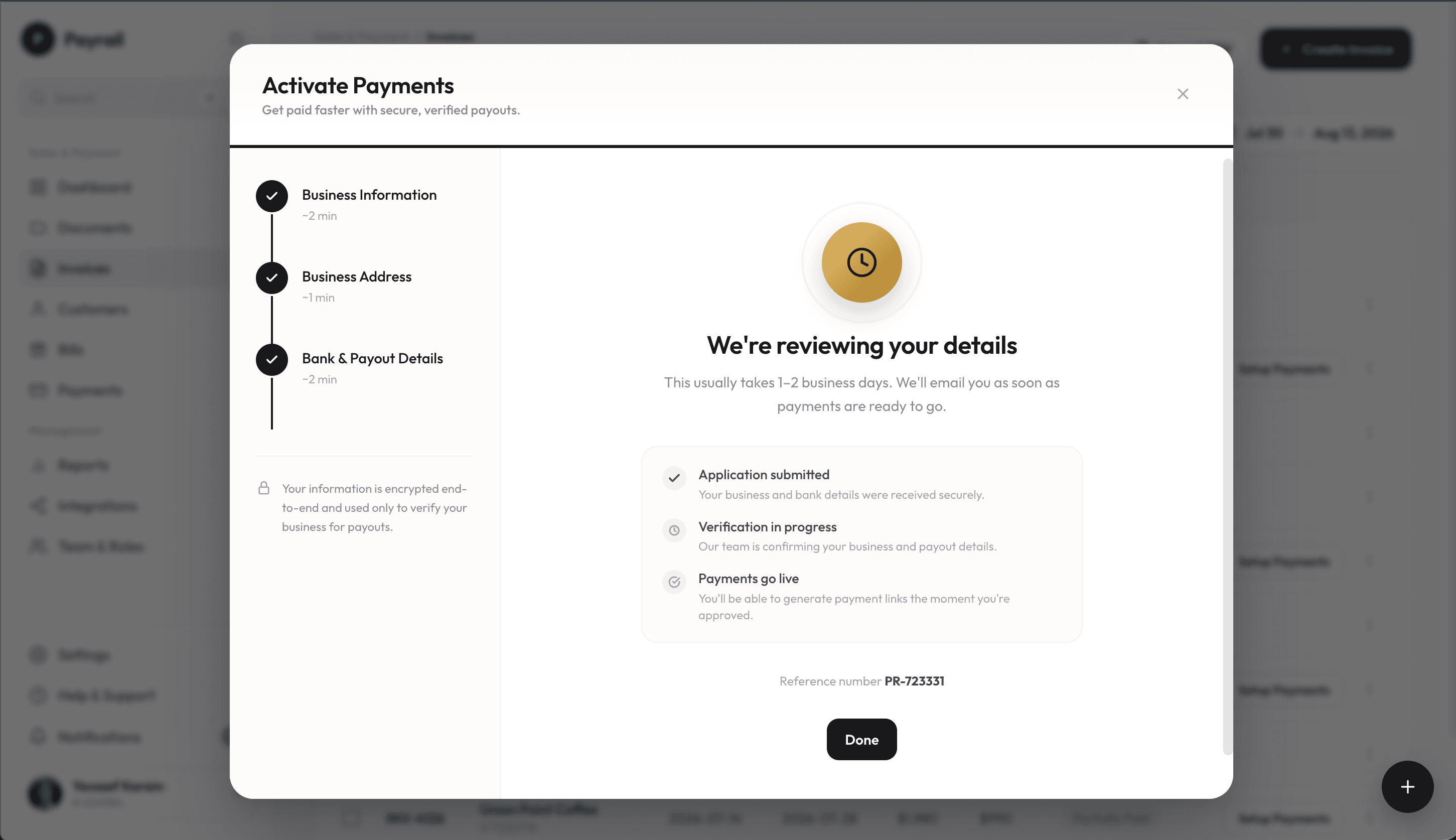
Confirmation screen: we're reviewing your details, with application submitted, verification in progress and payments go live stages and a reference number
DoneUnder reviewA clear confirmation: review takes 1–2 business days, three stages show where the application is, and a reference number is ready if needed.
Status, at every step

After submitting, merchants never have to ask support where things stand: the invoices page says it for them, and the link is ready the moment payments go live.

Submit, then see where it stands
While under review
Amber banner on the invoices page: your payment activation is under review, usually 1–2 business days
If it's declined
Red banner on the invoices page: payment activation was declined, review your business and bank details and resubmit, with a Reactivate Payments button
Once payments are live
Green banner on the invoices page: payments are live on your invoices
Validation & Iteration

Telemetry monitoring — tracked funnel conversion and drop-off points using product event analytics.

Release 2 refinements — addressed user hesitation around bank account parameters by adding targeted field tooltips, refined placeholder helper copy, and visual status badges.

Release 2 — tooltips on the bank & payout step
Each required document carries an info tooltip, so merchants know what to upload before they reach for it.
Before & After

Before — legacy architecture

Discoverability

Buried as an isolated tab in the side menu

Activation format

Cluttered, intimidating full-page form

Information guidance

No explanation for requested sensitive documents

Feedback loop

Ambiguous state post-submission

After — contextual Payrail integration

Discoverability

In-context triggers at invoice creation & index tables

Activation format

Lightweight 3-step wizard inside a side drawer

Information guidance

Transparent tooltips and clear document rationale

Feedback loop

Explicit status tracker with rejection resolution steps

Invoices — before and after activating payments
Invoices table after activation, with a Payment Link button on each unpaid invoice and the link popover open
Invoices table before activation, with a Setup Payments button on each unpaid invoice
BeforeAfter
Before activation, every unpaid invoice offers Setup Payments; afterwards the same spot generates a shareable payment link in one click.Drag the handle, or focus it and use the arrow keys, to compare.
Impact

2 months > 12 months

Unprecedented adoption — total activations in the first 2 months surpassed the entire preceding 12 months combined.

3–4%

Activation conversion rate attained within the first 14 days of launch.

Self-service

Onboarding-related support inquiries eradicated through self-explanatory microcopy and clear status notifications.